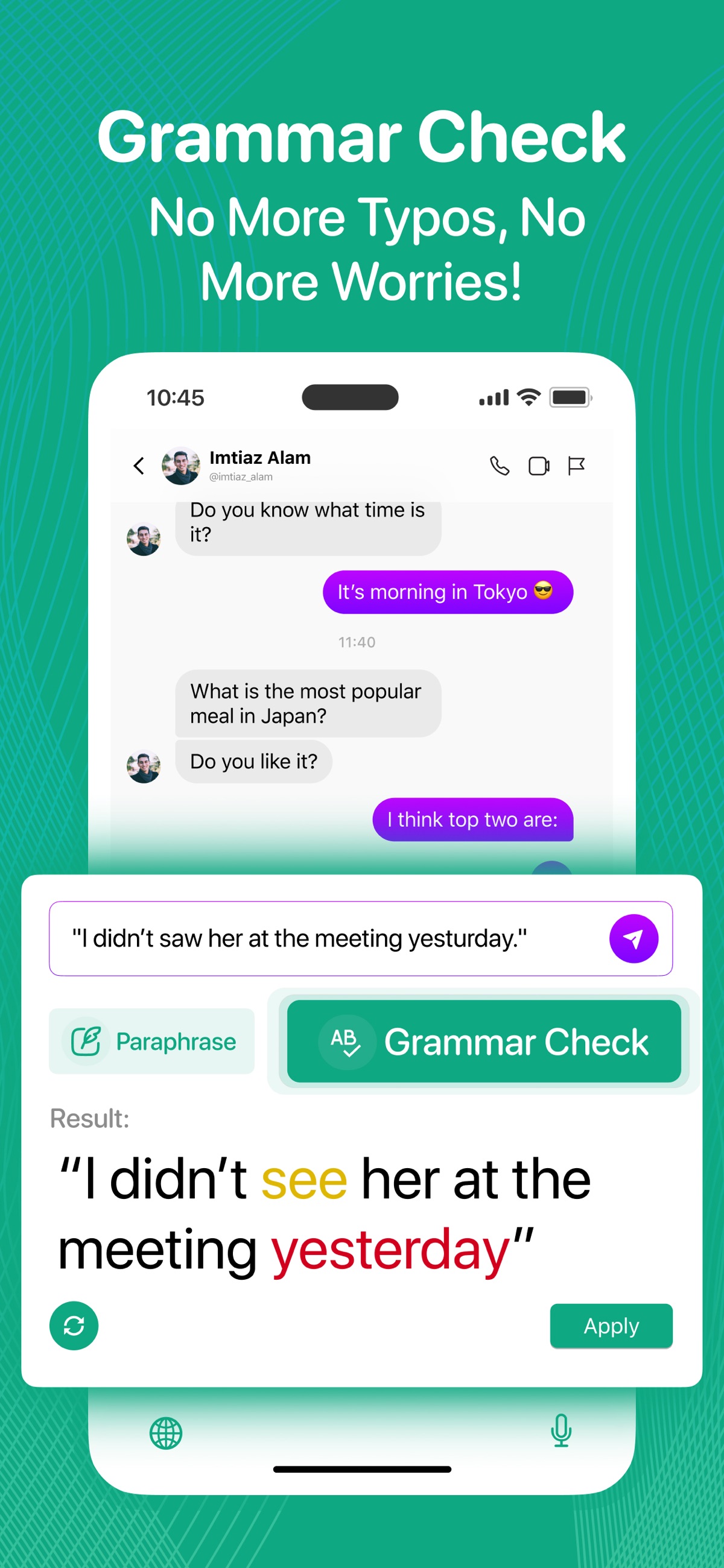
Check grammar before you send
Correct spelling and grammar in a draft, then review the result before applying it. Useful for messages, notes and emails.


AI keyboard & writing assistant for iPhone
From a quick reply to an important email, Textify puts writing help right where the words happen: your keyboard.

 On a computer?
Free download · In-app purchases · iOS 17.0+

A CLOSER LOOK
Official App Store screenshots.
Select an image to see it in detail.
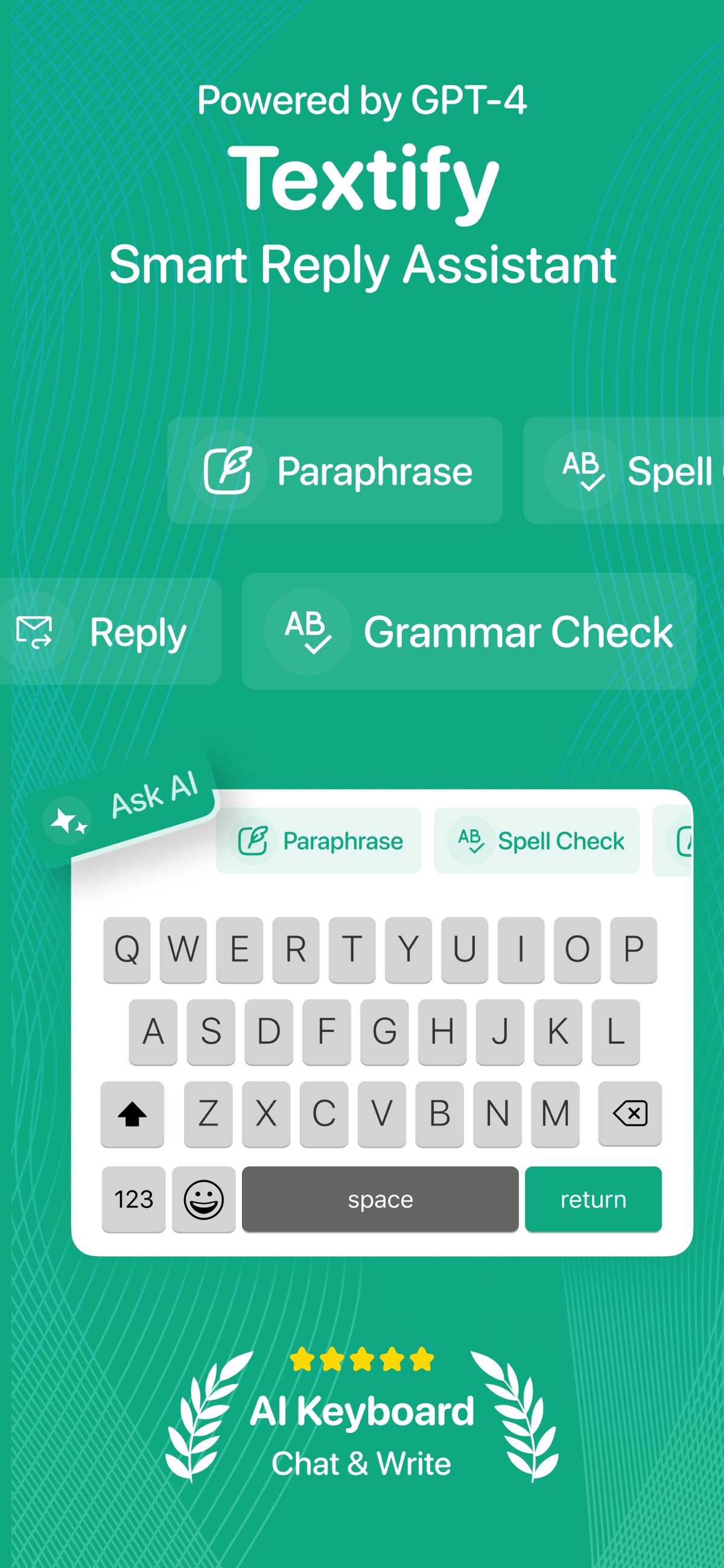
SMALL DETAILS. A BETTER EVERYDAY.
Correct spelling and grammar in a draft, then review the result before applying it. Useful for messages, notes and emails.
Try a professional, friendly or casual version of your message. Check that the rewrite preserves your facts and intent.
Translate text, explore another phrasing or look for a more suitable word with the synonym tool.
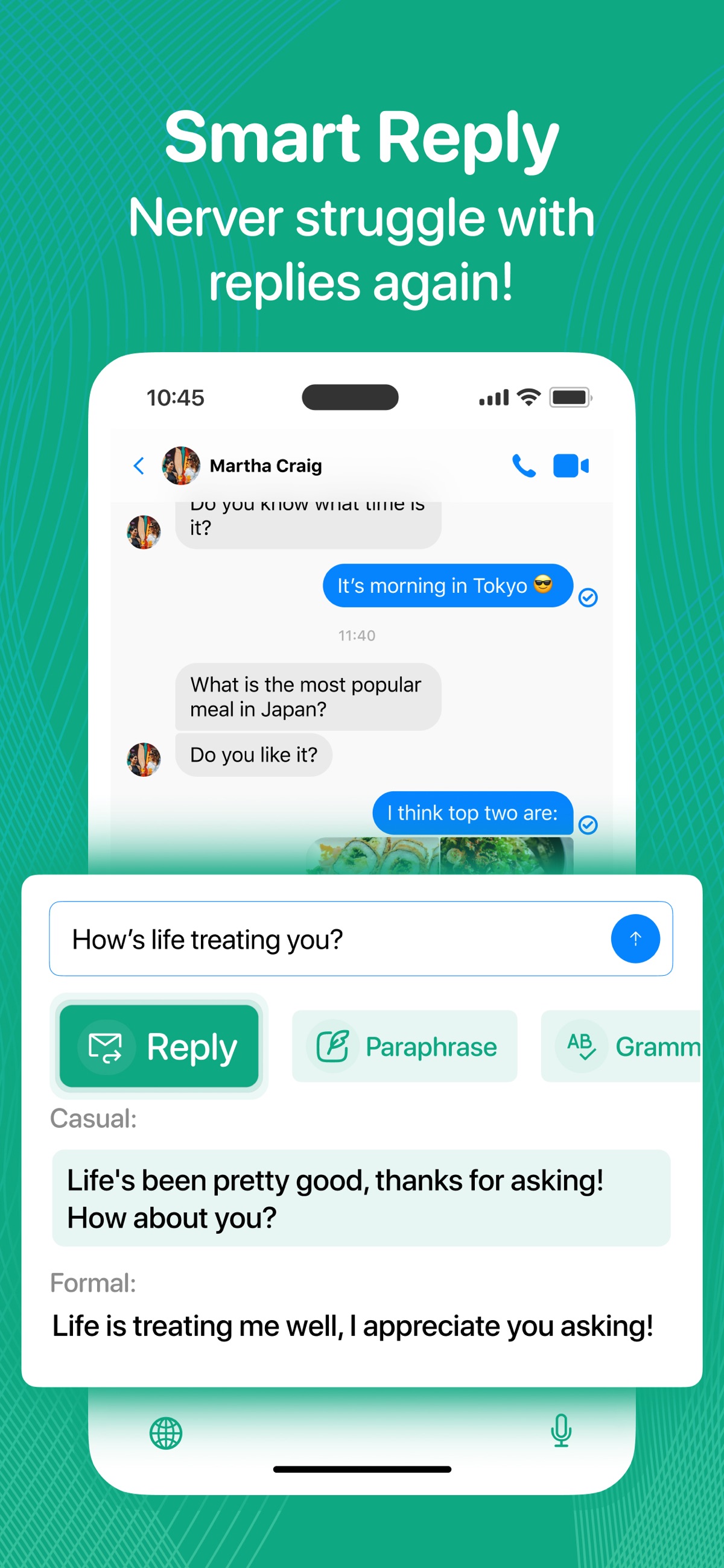
Use Reply, Continue Text, Email Writing or a custom command when you need a starting point. Edit the suggestion into your own voice.
IN REAL LIFE
Start with your request and the facts. Use a professional tone, then verify that the result has not invented a date, promise or deadline.
Use a friendly rewrite when a short reply sounds abrupt. Keep the wording you would naturally use.
Translate a draft and double-check names, numbers and specialist terms. For important nuance, ask a fluent speaker to review it.
Textify helps with wording; it does not verify the facts in your message. Keep sensitive information out of practice prompts and review AI output before sending.
FROM DOWNLOAD TO EVERYDAY
A LITTLE MORE CLARITY
The keyboard’s AI tools use an internet connection, which requires the iOS Full Access permission. Read the in-app explanation and privacy policy before enabling it. Textify also offers in-app Ask AI and email-writing tools.
Textify works where third-party keyboards are supported. Secure input fields and some apps may use the system keyboard instead. Try a normal note or message field when checking setup.
Full Access is an iOS permission, not a subscription. Available tools and any paid limits are shown separately in Textify and the App Store.
Yes. Textify includes keyboard themes and custom AI commands. Choose the options available in your installed version.
Yes. Check the meaning, names, dates, numbers and commitments. AI suggestions can be incorrect or add details you did not intend.
Textify requires iOS 17 or later. See the App Store for current compatibility, languages and purchase options.
Need a hand? Contact our team ↗
PRACTICAL HELP
Textify · 4 min readAdd Textify to your iPhone keyboards, switch to it while typing and understand Full Access. Includes a first grammar-check exercise and setup troubleshooting.
Read the guideTextify · 5 min readUse Textify for grammar, tone and replies without losing your meaning. Practical before-and-after examples for an email, a follow-up and a friendly message.
Read the guideTextify · 4 min readFind a missing Textify keyboard, distinguish iOS keyboard restrictions from AI connection issues, and collect useful details for support.
Read the guideTHERE’S MORE FROM SHAFFANS