Choose a blocking mode
Full Lockout blocks selected apps and websites. Distraction Shield adds a pause and supports selections of apps, categories and websites.
App blocker & screen time control for iPhone
Your attention belongs to you. Unhook helps you build boundaries around distracting apps and websites, so there is more room for the things you actually want to do.
 On a computer?
Free download · In-app purchases · iOS 18.0+

A CLOSER LOOK
Official App Store screenshots.
Select an image to see it in detail.
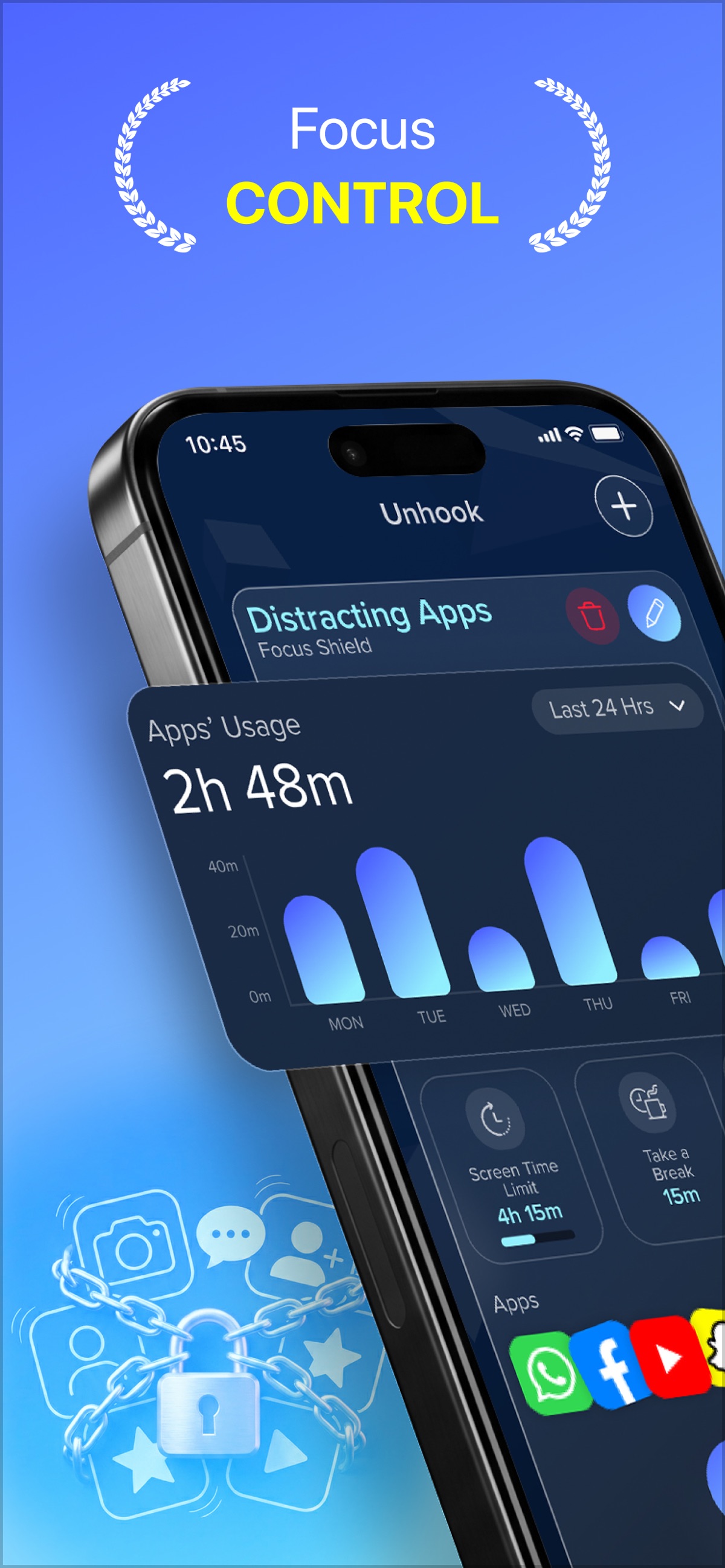
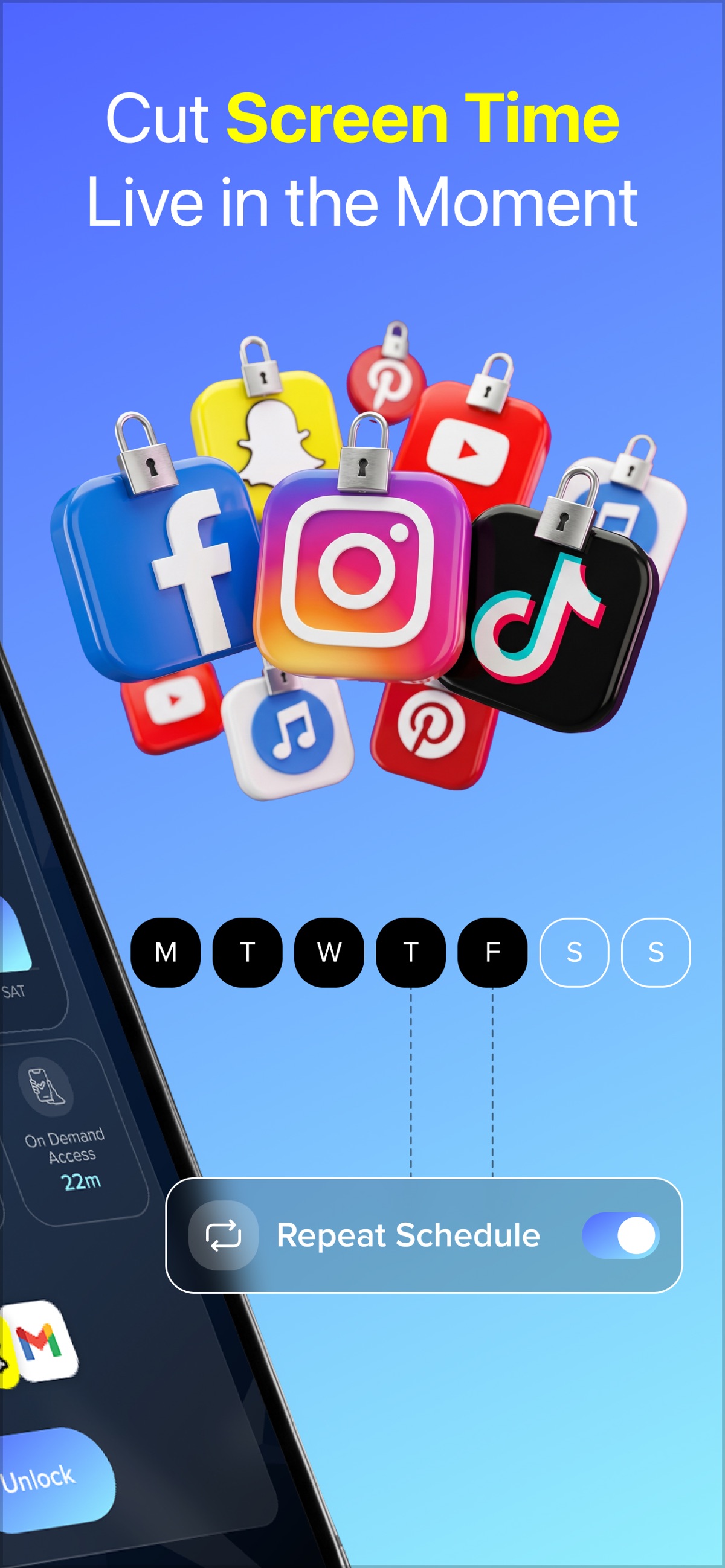
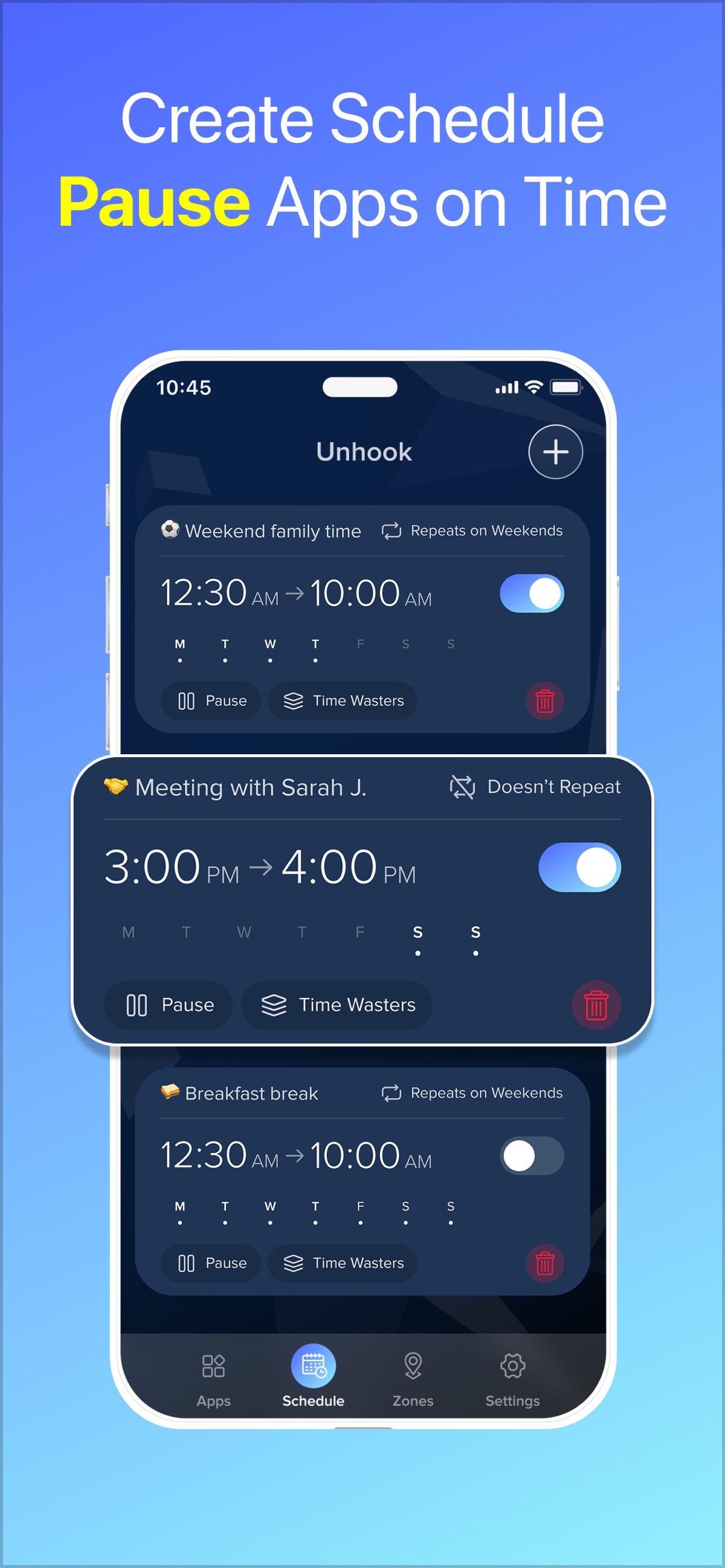
SMALL DETAILS. A BETTER EVERYDAY.
Full Lockout blocks selected apps and websites. Distraction Shield adds a pause and supports selections of apps, categories and websites.
Use a shared daily allowance or different limits by day. Set repeating schedules and customize break timing and duration.
Trigger group rules when you enter or leave a saved place, such as work or home. Review the requested location permissions before using this feature.
Use hourly and weekly reports to understand usage. Alerts can tell you when you approach a limit or a schedule, break or zone changes.
IN REAL LIFE
Group the social feeds that interrupt you and schedule the group for your planned work period. Keep tools you need for the task available.
Choose a daily limit that leaves room for deliberate breaks. Review your usage rather than repeatedly extending the limit without a plan.
Use a saved-place rule when location is the cue for a habit you want to change. Start with a small group before adding more apps.
Start with a rule you can test and maintain. Keep essential apps available, and review your exceptions before relying on a new schedule.
FROM DOWNLOAD TO EVERYDAY
A LITTLE MORE CLARITY
Full Lockout blocks selected apps and websites. Distraction Shield adds friction before opening and can include categories. Choose the mode that fits how firm you want the boundary to be.
Yes. Unhook supports website selections in groups. Test the sites you select after activating the rule.
Yes. Unhook supports custom break timing and duration, plus early resume options. Check for an active break if an app is available when you expected it to be blocked.
Check your blocking mode, group selection, active schedule, break state and Screen Time permission. If it continues, send support the rule type, iOS version and time of the issue.
Full Lockout selects individual apps and websites. Use Distraction Shield if you want to select app categories.
Unhook requires iOS 18 or later. Current plans and feature availability are listed in the app and on the App Store.
Need a hand? Contact our team ↗
PRACTICAL HELP
Unhook · 5 min readChoose an iPhone app limit or a focus schedule, set up Unhook, and troubleshoot distracting apps that still open. Includes a practical study routine.
Read the guideUnhook · 4 min readTroubleshoot an Unhook focus schedule: check its enabled state, selected group, time, blocking mode and breaks before changing your setup.
Read the guideUnhook · 6 min readCompare iPhone Screen Time, Opal, one sec, ScreenZen and Unhook. What each does well, what is free, and which kind of blocker fits doomscrolling, study time or bedtime.
Read the guideUnhook · 5 min readSet a TikTok time limit on iPhone with TikTok's own setting, Apple Screen Time or a schedule in Unhook. Which one to choose and how to make it harder to ignore.
Read the guideTHERE’S MORE FROM SHAFFANS