Create an event that repeats when needed
Add a trip, birthday or deadline. Choose repeat options and countdown modifiers such as excluding weekends when appropriate.
Countdown widgets & reminders for iPhone
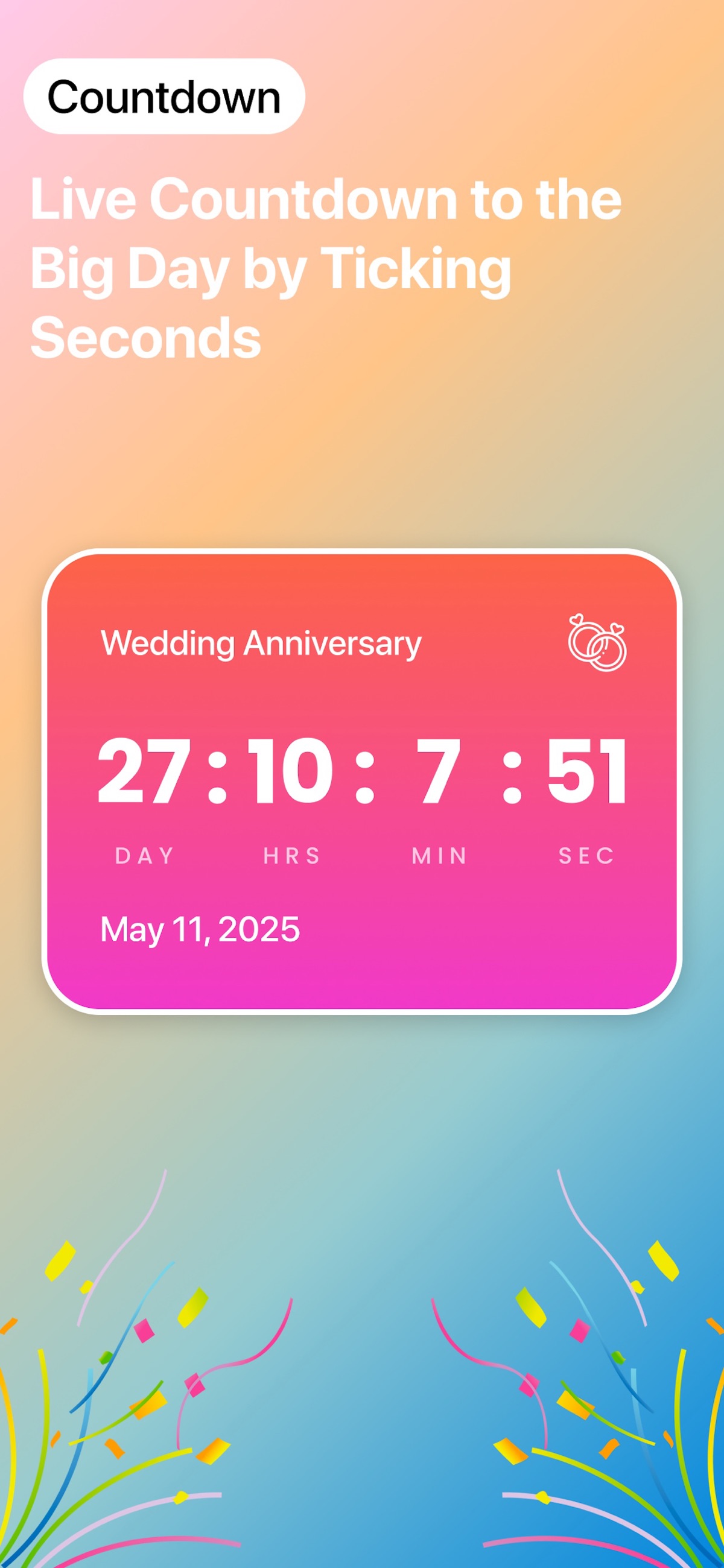
The next adventure. A birthday. That big deadline. Keep what is coming into view with countdowns that feel as personal as the moments themselves.

 On a computer?
Free download · In-app purchases · iOS 18.0+

A CLOSER LOOK
Official App Store screenshots.
Select an image to see it in detail.
SMALL DETAILS. A BETTER EVERYDAY.
Add a trip, birthday or deadline. Choose repeat options and countdown modifiers such as excluding weekends when appropriate.
Import events from Calendar and Reminders rather than entering every important date again. Review any requested access and the imported details.
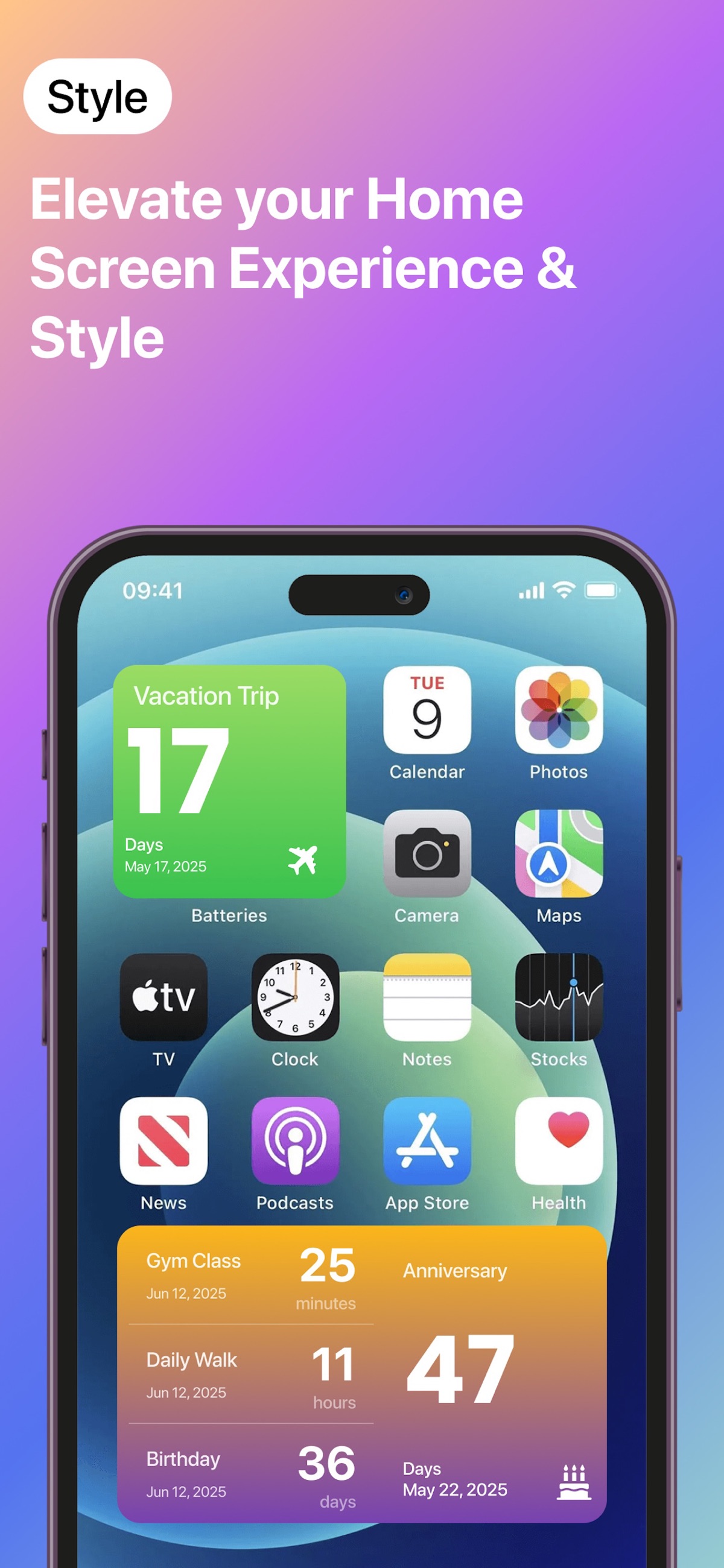
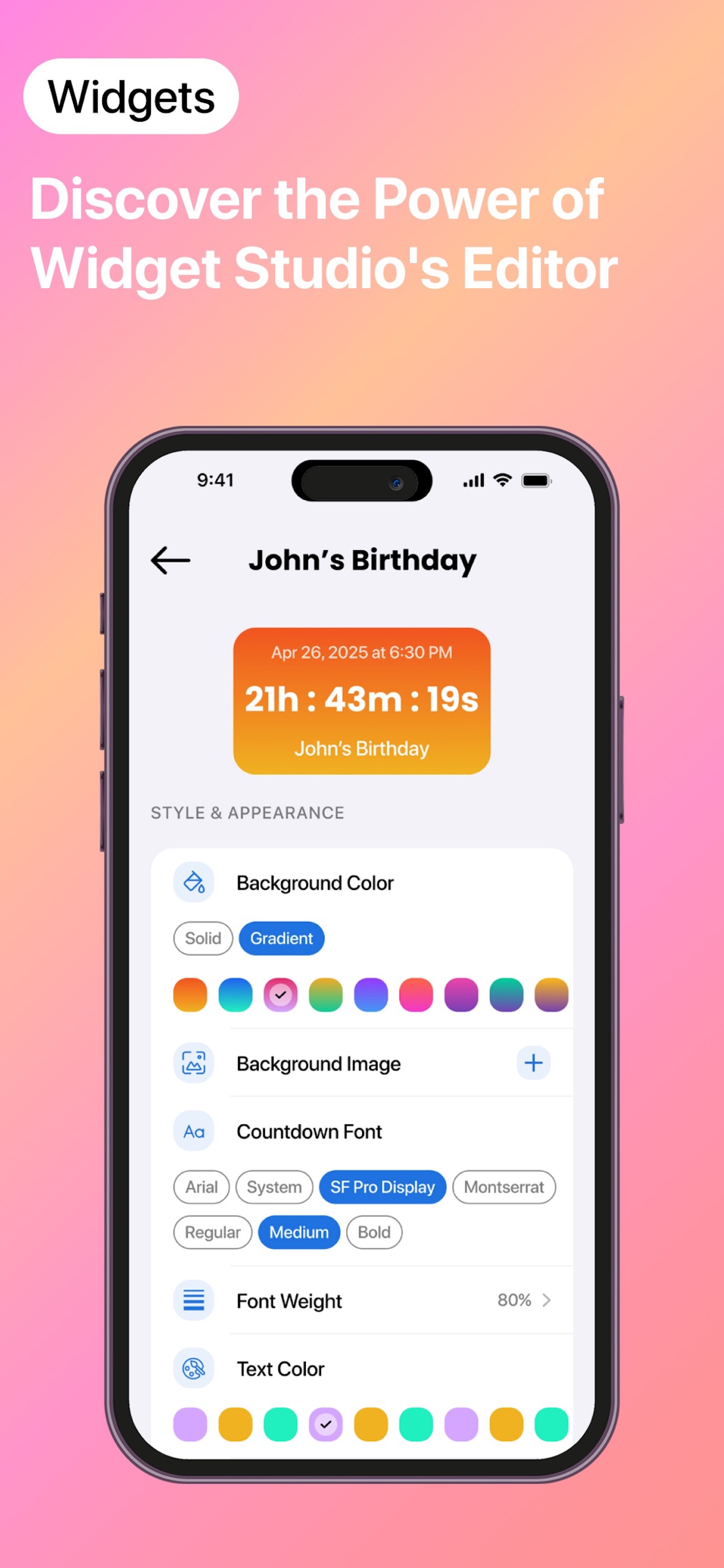
Use Home Screen, Lock Screen or StandBy widgets. Choose themes and icons to make important events easy to recognize.
Tie reminders and alarms to a countdown. Check the app’s permission prompts and your device settings during setup.
IN REAL LIFE
Create a repeating event and give it a recognizable icon. Put its countdown on a widget you check regularly.
Use the actual departure date and time, then review the event after importing it. Keep travel details in your travel app as well.
Use the exclude-weekends modifier when it fits your schedule. Check the underlying due date so the display matches the deadline you mean.
For time-sensitive plans, verify the actual event date and test your notification or alarm setup. A countdown display is a reminder, not a substitute for checking the event details.
FROM DOWNLOAD TO EVERYDAY
A LITTLE MORE CLARITY
CountX supports Home Screen, Lock Screen and StandBy widgets. Available layouts depend on the screen and your iPhone settings.
Yes. CountX supports importing from both. Review the imported date and time before adding an alert.
Yes. CountX includes a countdown modifier for excluding weekends. Use it when it matches how you want to count the days.
Yes. Custom alarms can be tied to countdown events. Follow the app’s permission prompts and test a sample event as part of setup.
Open CountX and confirm the event details, then review the widget’s selected event. If it still looks wrong, contact support with the widget type and iOS version.
CountX is free to download, with in-app purchases for some features. Check the current offer in the app or App Store. It requires iOS 18 or later.
Need a hand? Contact our team ↗
THERE’S MORE FROM SHAFFANS